What Counts as a Page Break in Google Docs
A page break ends the page where you put it, and everything after it starts at the top of the next page. You add one with Insert > Break > Page break or Ctrl + Enter (Cmd + Enter on a Mac). Google's help lists three kinds of break: a page break, a section break within a page, and a page break before a selected paragraph. In our test, the Break menu also offered a column break and both section breaks.
A page break only moves text. It doesn't start a new section, and margins and page numbers are set per section, so deleting one leaves your margins, page numbers, headers, and footers as they were.
Not every jump to a new page is a page break, though. Add page break before, a paragraph setting, starts its paragraph on a new page, and in our test it left no mark. Keep with next, Keep lines together, and Prevent single lines can push lines to the next page too, and so can a few empty lines at the bottom of a page.
Google Docs marks page breaks, section breaks, and empty lines only after you turn on View > Show non-printing characters; the paragraph settings are harder to spot.
How to Remove a Page Break in Google Docs (Step by Step)
Step 1: Turn on non-printing characters
Open the View menu and click Show non-printing characters (click it again to hide the marks). On Windows, the menu lists Ctrl + Shift + P next to it, and in our test that shortcut turned the marks on and off.
When we tested it, a page break showed up as a blue dashed line labeled Page break at the end of the line where it was inserted. A section break was a blue dashed line across the full width of the page, labeled with its type, such as Section break (next page). If nothing marks the spot where the text jumps, skip to Page Break Won't Delete? below.
Step 2: Click just before the Page break label
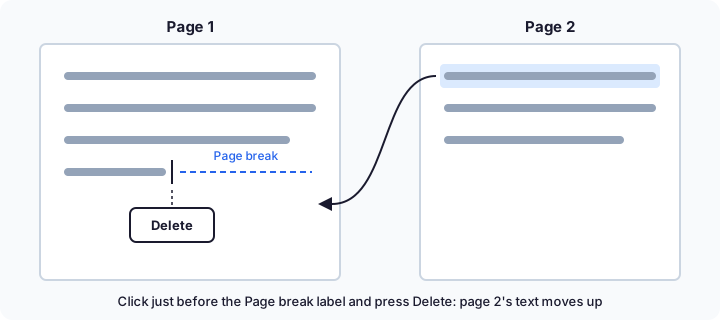
Click right after the last character on the line that ends in the break, so the cursor sits between your text and the Page break label. Check before you press anything: in our test, the End key put the cursor after the label, and Delete then removed the paragraph mark instead of the break.
Step 3: Press Delete
Press Delete on Windows. On a Mac, press Fn + Delete: the Mac Delete key deletes backward, and Fn + Delete deletes forward on keyboards without a separate forward-delete key. On a Chromebook, press Alt + Backspace. In our test, the label disappeared, the text from the next page moved up, and every line stayed on its own line.
Step 4: Check what moved up
If a gap remains, look for empty lines or another break (see the troubleshooting section below). To undo a mistake, press Ctrl + Z (Cmd + Z on a Mac).
You can also click at the very start of the line after the break and press Backspace (Delete on a Mac). When we tested it, that removed the page break too, but the line joined the end of the line before it, so you have to press Enter to split them again.
Delete a Page Break on Windows, Mac, Chromebook, and Mobile
The keys for deleting and adding a break differ by device. We tested on Windows; the Mac and Chromebook keys come from Apple's and Google's keyboard shortcut guides.
| Device | Remove a page break | Insert a page break |
|---|---|---|
| Windows | Click just before the Page break label and press Delete | Ctrl + Enter |
| Mac | Click just before the Page break label and press Fn + Delete | Cmd + Enter |
| Chromebook | Click just before the Page break label and press Alt + Backspace | Ctrl + Enter |
| Android, iPhone, iPad | Tap just below the break, then delete it | Edit > Insert > Page break |
On a Mac keyboard with a separate forward-delete key, press that key instead of Fn + Delete.
In the Google Docs app on Android, iPhone, or iPad
Google's steps for the app: open the document, tap Edit, tap just below the page break, and then delete the break. To add one, tap Edit, then Insert > Page break. To see how the document will look when it's printed, tap More and turn on Print layout. We tested only the web version, so these steps are Google's own.
How to Turn Off All Page Breaks at Once with Pageless
Pageless sets up a document so that it scrolls continuously without page breaks. On a computer, go to File > Page setup, select Pageless at the top of the dialog, and click OK, or choose Format > Switch to Pageless format. In the Android app, open the document, tap Edit, tap More at the top right, tap Page setup, and turn on Pageless.
Pageless doesn't delete page breaks, though: when we tested it, every one was still there. Google's help doesn't describe a command that deletes them all at once, so to get rid of them for good, delete them one at a time.
What changes when a document is pageless
Headers, footers, and watermarks disappear from view until you switch back to Pages. You can't add columns, page numbers, or headers and footers, and the break commands aren't available; in our test, the Format menu no longer listed Columns, Headers & footers, Page numbers, or Page orientation.
Your manual page breaks stay in the document: in our test, with non-printing characters on, each one showed up as a line labeled Page Break. You can still print, but the preview may differ: headers, footers, watermarks, and footnotes added in Pages format still print, wide tables are compressed, and images fit the page width.
When Pageless is the wrong fix
When we tested it, switching back to Pages put every page break, and every Add page break before setting, right back where it had been. So if you need page numbers, headers and footers, or a printout or PDF with fixed pages, Pageless can't help: stay in Pages and delete the breaks you don't want. Google's help also suggests switching back to Pages before printing if you want control over the printout.
Page Break Won't Delete? Check These Settings
No Page break label where the text jumps means there's no page break to delete. Something else is moving the text, most often a paragraph setting.
Add page break before is turned on
This paragraph setting starts its paragraph on a new page, and in our test it showed no mark, even with non-printing characters on. Don't backspace it away: when we pressed Backspace at the start of the paragraph, it merged into the paragraph above. Instead, select the paragraph or click anywhere in it, go to Format > Line & paragraph spacing, and uncheck Add page break before. The Line & paragraph spacing button on the toolbar has the same option.
Keep with next, Keep lines together, or Prevent single lines is on
Keep with next keeps a heading on the same page as the next paragraph, Keep lines together keeps a paragraph's lines on one page, and Prevent single lines stops a paragraph's first or last line from sitting alone at the top or bottom of a page. None of them is available in pageless documents.
A volunteer Product Expert on the Google Docs Editors Community points out that these options can cause jumps that look like a page break you can't delete, and that they don't show as non-printing characters. Select a few lines around the jump, see which options are checked under Format > Line & paragraph spacing, and uncheck the one moving the text. In our test, a new document already had Prevent single lines on for body text.
It's a section break, not a page break
A Section break (next page) also starts a new page, but it separates two sets of page settings, so margins and page numbers can differ on each side. It's the full-width line from Step 1. Removing one is a different job: see how to delete a section break in Google Docs.
Empty lines are pushing text down
With non-printing characters on, an empty line is a blue ¶ with nothing before it. A stack of them at the bottom of a page pushes the next text onto a new page. Select the extra ¶ marks and press Delete.
There's a blank page at the end of the document
Turn on non-printing characters and check the end of the document for a page break, a section break, or empty lines. Remove page breaks and empty lines as shown above. For a section break, a volunteer on the Google Docs Editors Community suggests this fix: put the cursor just before the last section break, drag to select from the paragraph mark before it to the one after it, and press Delete or Backspace.
Page Break vs. Section Break in Google Docs
Here's how a page break compares with the two section breaks and the Add page break before setting.
| Page break | Section break (next page) | Section break (continuous) | Add page break before | |
|---|---|---|---|---|
| How you add it | Insert > Break > Page break, or Ctrl + Enter (Cmd + Enter on a Mac) | Insert > Break > Section break (next page) | Insert > Break > Section break (continuous) | Format > Line & paragraph spacing > Add page break before |
| Starts a new page | Yes | Yes | No | Yes, before that paragraph |
| Starts a new section | No | Yes | Yes | No |
| How you see it | View > Show non-printing characters | View > Show non-printing characters | View > Show non-printing characters | No mark; check Format > Line & paragraph spacing |
| How you remove it | Press Delete just before the Page break label | See our section break guide | See our section break guide | Turn the setting off |
Removing a page break only lets the text after it move up. A section break marks where margins and page numbers can change, so read what happens when you delete a section break in Google Docs before removing one.
Downloaded as Word and Got a Blank Page?
When you download a document with File > Download > Microsoft Word (.docx), its page breaks and section breaks come along with the file. If the Word copy shows a blank page, the usual cause is a break on an empty line.
Our free section break remover can fix the file in your browser without uploading it. By default, it removes section breaks that sit on an empty paragraph and start a new page, empty paragraphs that hold only a manual page break, and empty paragraphs at the end of the document; it can also remove every section break. It works only with .docx files. To fix the file in Word by hand, see our guide to removing a blank page in Word.
FAQ
How do I see page breaks in Google Docs?
Turn on View > Show non-printing characters (Ctrl + Shift + P on Windows). In our test, each page break then showed a blue Page break label at the end of its line. Google's help page still describes a separate Show section breaks option, but as a volunteer Product Expert on the Google Docs Editors Community explains, the View menu now folds it into Show non-printing characters, so section breaks show there too. Paragraph settings stay hidden: Add page break before showed no mark in our test, and community advice says the same of Keep with next.
What is the keyboard shortcut for a page break in Google Docs?
Ctrl + Enter on Windows or a Chromebook, or Cmd + Enter on a Mac; in our test, the text after the cursor moved to the next page. To remove one, click just before its Page break label and press Delete (Fn + Delete on a Mac, Alt + Backspace on a Chromebook).
Why won't my page break delete in Google Docs?
Usually because it isn't a page break. In our test, Add page break before moved a paragraph to a new page without any mark, and a new document had Prevent single lines on by default; a volunteer Product Expert on the Google Docs Editors Community notes that Prevent single lines, Keep with next, and Keep lines together can cause such jumps. Section breaks and empty lines can too. If you see a Page break label, check the cursor: in our test, Delete with the cursor after the label removed the paragraph mark instead. Pageless documents lack the break features, so switch to Pages first.
What happens to page breaks when I switch to Pageless?
They stay in the document. In our test, with non-printing characters on, each one showed up in Pageless as a line labeled Page Break, and after we switched back to Pages, every page break and Add page break before setting was still in place. While a document is pageless, you can't add page breaks or page numbers.
How do I remove a page break in the Google Docs mobile app?
Open the document, tap Edit, tap just below the page break, and then delete the break. Those are Google's steps for Android, iPhone, and iPad. To see how the document will look when it's printed, tap More and turn on Print layout.
Does removing a page break change my formatting?
No. A page break isn't a section boundary, so removing it leaves your margins, page numbers, headers, and footers alone. In our test, Delete just before the label left every line as it was; Backspace at the start of the next line joined that line to the one before the break, so press Enter to split them again.