Find Your Symptom
Find the row that matches what you're seeing, then follow the fix in the last column; the links jump to the full instructions further down this page.
| Symptom | Likely cause | Fix |
|---|---|---|
| Delete does nothing at all | The file is in Protected View or has editing restrictions | Click Enable Editing, then Review > Restrict Editing > Stop Protection (Step 2) |
| The break goes away, but the blank page stays or the break returns | Track Changes recorded the deletion instead of making it | Accept All Changes and turn Track Changes off (Step 3) |
| On a Mac, Delete erases the text before the break | The Mac Delete key deletes backward | Click before the break and press Fn+Delete (Step 4) |
| The break is the last thing in the document | It holds the final section's settings and can't be deleted | Delete the empty paragraphs in front of it (Step 5) |
| You can't click next to the break or select it | The header or footer is still open | Close the header and footer, then click just before the break or select it in Draft view |
| It deletes, but headers, margins, or orientation change | The sections merged and took on the settings of the section after the break | Undo, then use Link to Previous or change the break to Continuous |
| There are many breaks you don't need | Breaks were inserted throughout the document | Find and Replace ^b with nothing (it can miss breaks next to tables) |
| Nothing above works | A cross-reference spans the break, or the break sits right next to a table | Try the fixes in Still Won't Delete?, or upload the file above |
Why a Section Break Sometimes Refuses to Die
When Delete does nothing, the instinct is to blame Word or your keyboard. In reality, an undeletable section break almost always comes down to a specific, fixable situation — and once you know which one you are in, the fix is straightforward.
It helps to know what a section break actually is. It is not a character floating between paragraphs: the break lives on the paragraph mark at the end of a paragraph. And the label Word displays — "Section Break (Next Page)", "Section Break (Continuous)" — describes how the following section begins, not a property of the paragraph carrying the break. Two consequences follow. Deleting the surrounding text never touches the break, because the break rides on the paragraph mark. And when you do delete a break, the sections on either side merge and the combined content adopts the page setup, headers, and footers of the section that came after the break — which is why a successful deletion occasionally reshuffles your layout.
The most common ones come first below, roughly in order of how often they bite; rarer causes follow under Still Won't Delete? If your real symptom is a blank page rather than the break itself, start with our remove-a-blank-page guide — same machinery, different angle.
How to Fix a Section Break That Won't Delete (Step by Step)
Step 1: Make the break visible
Press Ctrl+Shift+8 (Cmd+8 on Mac) to show formatting marks. A section break appears as a double dotted line with a label. If you cannot see the break you are trying to delete, you cannot be sure what you are actually deleting. On a Mac the shortcut and the Delete key both differ from Windows — our Mac-specific section break guide covers those details.
Step 2: Remove editing restrictions
If the file opened in Protected View, click "Enable Editing" in the yellow bar first. Then check Review > Restrict Editing (Word for Windows) and click "Stop Protection" if it is active — a restricted document silently ignores delete presses. This is the most common cause of the "nothing happens" symptom: no error, no beep, no deletion. Documents downloaded from email or the web open protected by default.
Step 3: Turn off Track Changes and accept pending changes
On the Review tab, turn Track Changes off, then choose Accept > Accept All Changes. With tracking on, a "deleted" break is only marked for deletion and keeps affecting the layout until the change is accepted. This explains the maddening case where a break you already "deleted" keeps producing a blank page: the deletion exists only as a pending revision.
Step 4: Click before the break and press Delete
Place the cursor immediately to the left of the double dotted line and press Delete (Fn+Delete on a Mac laptop, since the Mac Delete key alone deletes backwards). The sections merge, and the merged content adopts the page setup of the section that followed the break. In the common blank-page case both sections share the same settings, so the merge is invisible.
Step 5: If the break is at the very end, fix what precedes it
The final section’s settings are stored on the document body, not on a deletable break — so at the end of a document there is nothing to delete. Remove the empty paragraphs and paragraph-level breaks before that point instead; the stubborn blank page goes with them. This is not a limitation Word could remove in an update — it is how the .docx format defines the last section of every document.
The Two Truly Stubborn Cases, Explained
The end-of-document "break". Every Word document stores the page setup of its final section on the body of the document itself, not on a paragraph. When formatting marks are on, Word draws something break-like at the end of the file, and people burn ages trying to delete it. You can't, and you shouldn't: it isn't a break, it's the document's structural definition of its last section. Anything that claims to delete it is corrupting the file. The stubborn blank page at the end of a document is caused by what sits before that point — trailing empty paragraphs, or a paragraph-level Next Page break on an empty line.
The break trapped after a table. The .docx format requires a paragraph immediately after every table. If a section break attaches itself to that mandatory paragraph — common when a table ends a section — Word will not let you delete the paragraph, so the break looks unkillable. The correct fix is surgical: remove the section properties from that paragraph while leaving the paragraph itself in place. In Word you can approximate this by placing the cursor in the section before the break and copying its page setup into the following section (Layout > Page Setup), which makes the break harmless even though it still exists. The tool on this page does the surgical version for real: it strips the break out of the paragraph's properties and keeps the required paragraph, so the document stays valid.
Still Won't Delete? Seven More Fixes to Try
If the steps above didn't get rid of the break, work through these fixes in order. They come from Microsoft's documentation, answers on Microsoft Q&A, and reports from users in Microsoft's community forums. The community fixes worked for the people who posted them, but none is guaranteed, and you can undo any step with Ctrl+Z.
Select the break in Draft view
Microsoft suggests switching to Draft view (View > Draft) when you're hunting for a section break, because breaks are easier to find there. Click once in the left margin beside the break to select it; double-clicking the break opens the Page Setup dialog instead. With the break selected, press Delete, then switch back with View > Print Layout.
If the break sits right next to a table, Draft view may not help. On Microsoft Q&A, a Word for Mac user whose breaks sat in or next to tables solved it another way: put the cursor at the very start of the break and press forward delete, which is Fn+Delete on a Mac laptop. On Windows, the equivalent is the Delete key.
Remove section breaks in bulk with Find and Replace (^b)
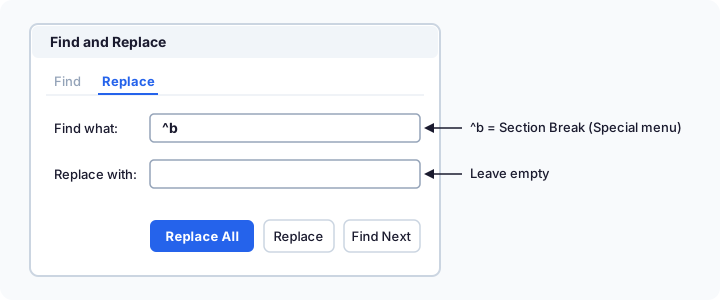
Users in Microsoft's community forums report that Find and Replace removed breaks they couldn't delete with the cursor. Press Ctrl+H on Windows; on a Mac, choose Edit > Find > Advanced Find and Replace and switch to the Replace tab. Click More, open the Special menu, and choose Section Break: Word fills in ^b, its code for a section break. Leave the Replace with box empty, then click Replace All, or use Find Next and Replace to remove the breaks one at a time.
On Microsoft Q&A, a Word for Mac user and a Microsoft community moderator found that Replace All skipped breaks inside or right next to a table. For those, use the forward delete from the end of the previous fix, or cut the table as described below.
Every break you remove merges two sections under the settings of the section after the break, so the more breaks you remove, the more of your content takes on a later section's settings. Remove them all, and the whole document uses the last section's page setup, headers, and footers.
Change the break to Continuous instead of deleting it
If all you want is to lose the blank page, keep the sections and change the break's type instead. Click in the section after the break, go to Layout, and click the small arrow in the bottom-right corner of the Page Setup group. On the Layout tab, set Section start to Continuous and click OK. On a Mac, the same setting is under Format > Document > Layout > Section start. Microsoft suggests this change when deleting a break in the middle of a document causes formatting problems.
Word for the web can't add or change section breaks, so use the desktop app. One catch, noted in an answer on Microsoft Q&A: if the two sections use different page orientations, Word changes a Continuous break back to Next Page.
Keep your headers and footers: turn on Link to Previous first
Microsoft's advice: if you want a section to keep the formatting, headers, or footers from before the break, use Link to Previous instead of removing the break.
If you still want the break gone, an answer on Microsoft Q&A gives the steps for keeping the earlier section's settings. Double-click the header in the section after the break, and on the Header & Footer tab, turn on Link to Previous. Do the same for the footer, then close the header and footer. To keep the page setup as well, click in the section before the break, open Page Setup, and click OK without changing anything; then click in the section after the break and press F4. Now delete the break. A user in Microsoft's community forums reports that linking the headers and footers first kept theirs intact.
Cut the table that follows the break
A user in Microsoft's community forums reports that a break with a table right after it wouldn't delete until they moved the table out of the way. Select the whole table, cut it with Ctrl+X (Cmd+X on a Mac), delete the break, then paste the table back with Ctrl+V (Cmd+V). This is a different case from the break trapped after a table, explained above: there the break sits on the paragraph after a table, while here it sits just before one.
Remove a cross-reference that spans the break
Another user in Microsoft's community forums reports that Word refused to delete a section break because a cross-reference spanned it, such as one pointing to a figure or table caption. Once the cross-reference was gone, the break could be deleted too. The order they used: delete the cross-reference (you may need to turn off Track Changes first), delete the break, and then insert the cross-reference again. If your document has no cross-references, skip this one.
Last resort: paste the line back as plain text
When nothing else works, a user in Microsoft's community forums reports one more fix. Select the line that holds the break, copy it, paste it back over itself, and choose Paste Options > Keep Text Only. In their report, that removed the break. Keep Text Only also drops the line's formatting, so expect to format the line again afterward. With formatting marks showing (Ctrl+Shift+8), you can check that the break is gone before you do.
The One-Click Alternative
The uploader at the top of this page sidesteps the blocking problems on this list. It reads your .docx directly in the browser, shows every section break it finds — including breaks parked on empty paragraphs and breaks trapped after tables — and removes exactly the ones you approve. It edits the underlying document structure, so on-screen editing restrictions and Track Changes markup can't block it; it never touches the mandatory final section settings; and it preserves the required paragraph after every table. Your file never leaves your computer, and the fixed copy downloads in seconds with -fixed appended to the name. Free, no sign-up. To understand the underlying mechanics from the ground up, see the complete section break deletion guide.
FAQ
Why can't I delete the section break at the end of my document?
Because the "break" at the very end of a Word document is not a break at all. The page setup of the final section is stored on the document body itself rather than on any paragraph, which makes it a structural part of the file — there is no character for the Delete key to remove, and removing it would break the document. The trailing blank page it seems to cause actually comes from empty paragraphs or paragraph-level breaks sitting in front of it. Delete those and the page disappears while the final section stays intact.
I press Delete and literally nothing happens. Why?
That is almost always protection. A document opened in Protected View is read-only until you click Enable Editing, and a document with editing restrictions (Review > Restrict Editing) swallows delete presses without any error message. On a Mac there is a third possibility: the Mac Delete key deletes backwards, so with the cursor placed before the break it removes the text behind the cursor — or nothing — rather than the break. Use Fn+Delete to delete forward.
I deleted the break but the layout changed. Is that a bug?
No — it is how section merging works. Each section break separates two sets of page settings, and the label on a break (such as "Section Break (Next Page)") describes how the following section starts. When you delete the break, the two sections merge and everything takes on the page setup, headers, and footers of the section that came after the break. If the sections used different orientation, margins, or headers, the earlier content visibly changes. Press Ctrl+Z to undo, note the settings you need, and reapply them after deleting.
Is my document uploaded when I use the fixer on this page?
No. The file is opened, analyzed, and repaired entirely inside your browser — no document content is ever sent over the network, and nothing is kept once you close the page. That is a property of how the tool is built, not just a policy promise.
Why does Word let me delete text but not the section break?
Because the break is not part of the text around it. It sits on a paragraph mark and stores the formatting of the section before it, while its label, such as Section Break (Next Page), describes how the section after it starts. Deleting the words nearby never touches that mark, so the break stays put. To remove it, select the break itself: in Draft view (View > Draft), click once in the left margin beside it and press Delete. Or search for ^b in Find and Replace and replace it with nothing. Editing restrictions and Track Changes can also block the deletion, so check for those too.
How do I delete all section breaks in Word at once?
Use Find and Replace: press Ctrl+H (on a Mac, Edit > Find > Advanced Find and Replace), type ^b in the Find what box, leave Replace with empty, and click Replace All. On Microsoft Q&A, a Word for Mac user and a Microsoft community moderator found that this can miss breaks inside or right next to a table. Each removed break hands its content the settings of the section after it, so once every break is gone, the whole document uses the settings of the last section. The uploader on this page does the same job with Remove ALL section breaks checked: it also removes breaks right next to tables, editing restrictions and Track Changes cannot block it, and, like Find and Replace, it leaves the settings of the final section alone.